


An open-source workspace platform for advanced image and media comparison.
Read this in other languages: Русский
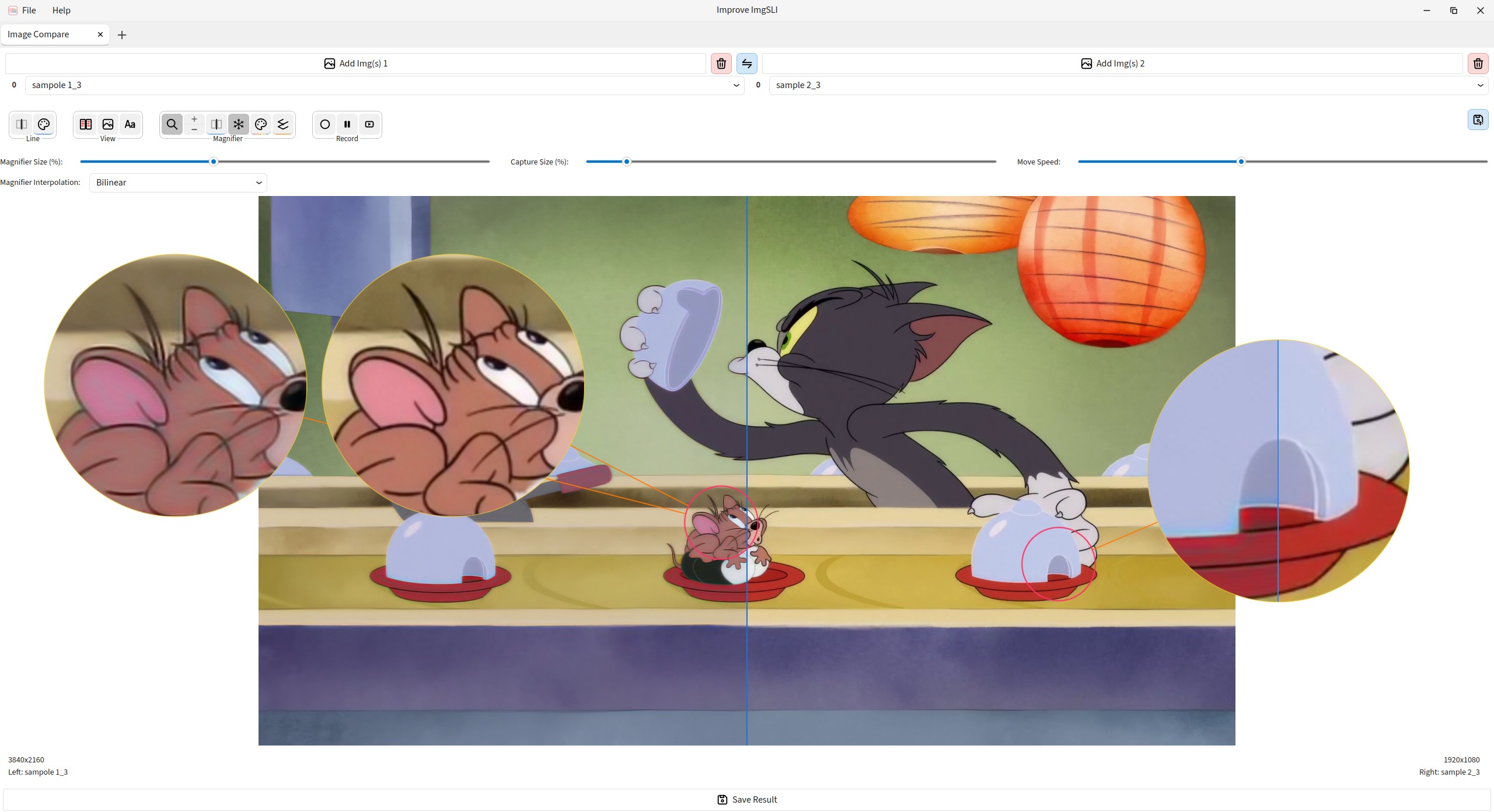
- Get Improve-ImgSLI: Windows installer • Flathub • AUR
- Install & run from source: docs/INSTALL.md • launcher reference: docs/LAUNCHER.md
- Learn the app: in-app Find Action (
Ctrl+Shift+P) and Help • browse topics: EN Getting Started • EN host topics • RU - Contribute: CONTRIBUTING.md
- More: Development History • Project Vision
- 🗂️ Tabbed workspace platform: the app opens on a session picker where you spin up independent workspace tabs — a two-image Image Compare tab and a synchronized N-image Multi Compare tab so far, switched through a Firefox-style tab bar, each with its own state, canvas, and export pipeline, more workspaces planned.
- 🔬 Analysis beyond a simple slider: live diff modes for Highlight, Grayscale, Edge Comparison, and SSIM Map, plus optional PSNR/SSIM metrics for objective image checks.
- 📤 WYSIWYG export built for real comparisons: save the exact composed view with splitters, magnifier, overlays, and styled file names, with support for PNG, JPEG, WEBP, BMP, TIFF, and JXL.
- 🎬 Session recording, timeline editing, and video export: capture comparison sessions, trim or delete timeline ranges, keyframe comparison states, and export to MP4, WebM, AVI, GIF, ProRes, AV1, and more.
- 🔍 High-precision magnifier: dual or combined circle, internal split control, subpixel-stable rendering, EWA Lanczos support, freeze mode, guide "lasers", and precise WASD/QE navigation.
- 🔭 Multi-magnifier workspace: place as many magnifiers as you need on the same comparison, each with its own capture area, position, size, colors, and freeze state — hide, restore, or delete them individually, with optional auto-color assignment for new instances and live intersection highlighting while dragging.
- 🖼️ Fast interactive canvas: vertical/horizontal split, smooth GPU-accelerated zoom and panning, synced pan/zoom across both sides, channel view modes, anti-aliased dividers and overlays, and instant single-image preview with Space + mouse buttons.
- 🔀 Multi Compare tab: lay out and synchronize any number of images in one scene, drag slots to rearrange the layout, resize dividers freely, and jump into a fullscreen focus mode for any cell.
- 🗂️ File workflow tuned for large batches: drag and drop, reorder across left/right lists, clipboard paste, ratings, filename editing, and quick side switching with the mouse wheel.
- 🎨 Deep UI customization: adjustable divider visibility/color/thickness, magnifier styling, text overlay styling, custom icon-based controls, light/dark themes, and custom UI fonts, all built on the project's own custom-drawn UI toolkit.
- 🔎 Find Action + illustrated Help: search and run any command with
Ctrl+Shift+P(Learn more opens the matching topic); hierarchical in-app Help with hubs, topic cards, and tab-owned pages for Image Compare / Multi Compare. - 💾 Project files (
.imgsli): save your entire workspace state, including loaded images, splitters, magnifiers, and video sessions, into a single.imgslicontainer for easy sharing and resuming (see technical format docs). - ⚙️ Polished desktop UX: persistent layout and settings, multilingual UI (EN/RU/zh/pt_BR), tray integration, save notifications, auto-cropping options, and a robust launcher for source-based runs.
End users:
- Windows: download and run the latest installer from the Releases.
- Linux (Flatpak):
flatpak install io.github.Loganavter.Improve-ImgSLI, thenflatpak run io.github.Loganavter.Improve-ImgSLI. - Linux (AUR):
yay -S improve-imgsli.
From source (minimal):
git clone https://github.com/Loganavter/Improve-ImgSLI.git
cd Improve-ImgSLI
chmod +x launcher.sh
./launcher.sh run
See full instructions in docs/INSTALL.md and launcher command details in docs/LAUNCHER.md.
Current limitation:
- Images above
65536 pxon either side are rejected on load. That bound protects against pathological decode sizes (codecs still decompress a full frame once; spill intoTiledPixelStoreis strip-written). Live rendering itself is tiled. Still-image export above16384 pxon a side is allowed but warns that the path is untested.
- Start Improve-ImgSLI — it opens on the session picker; choose Image Compare for a classic two-image comparison, or Multi Compare to line up several images at once. Each choice opens as its own tab.
- Press
Ctrl+Shift+Panytime to Find Action — search settings, tools, and session actions by name; use Learn more on a row to open the matching Help topic. - In Image Compare, load images via “Add Img(s)” or drag-and-drop. Use
Space + Left/Right Mouse Buttonfor quick single-image preview. - Move the split line with the mouse; toggle Horizontal Split if needed.
- Enable the magnifier, pick interpolation, and adjust zoom/position via sliders or keys.
- Use
Space + Shift + Left/Right Mouse Buttonto force a side in combined magnifier preview when needed. - Customize dividers and text, then export the composite image.
- In Multi Compare, drop or add images into the scene, drag slots to rearrange the layout, resize dividers, and double-click a cell for a fullscreen focus view.
For detailed guides, hotkeys, and settings, use in-app Help (Help menu or Find Action → Help) or browse the markdown sources:
- EN: Getting Started • Host topics • Image Compare • Multi Compare
- RU: Начало работы • Host topics
Contributions are welcome! Please read CONTRIBUTING.md for development setup, coding guidelines, and packaging notes. Report issues and propose PRs via GitHub.
This project is supported and improved by the efforts of dedicated maintainers. A huge thank you for their contributions!
 Nebulosa |
AUR Package Maintainer
A massive thank you to Nebulosa for his relentless dedication to maintaining the Arch Linux (AUR) package right from the start. His proactive work in fixing packaging issues and ensuring stability has been crucial for the project's presence and reliability within the Arch community. 

|
GPL-3.0-or-later. See LICENSE.
Runtime dependencies (including PySide6/Qt under LGPL-3.0-or-later) are listed in THIRD_PARTY_LICENSES.md.